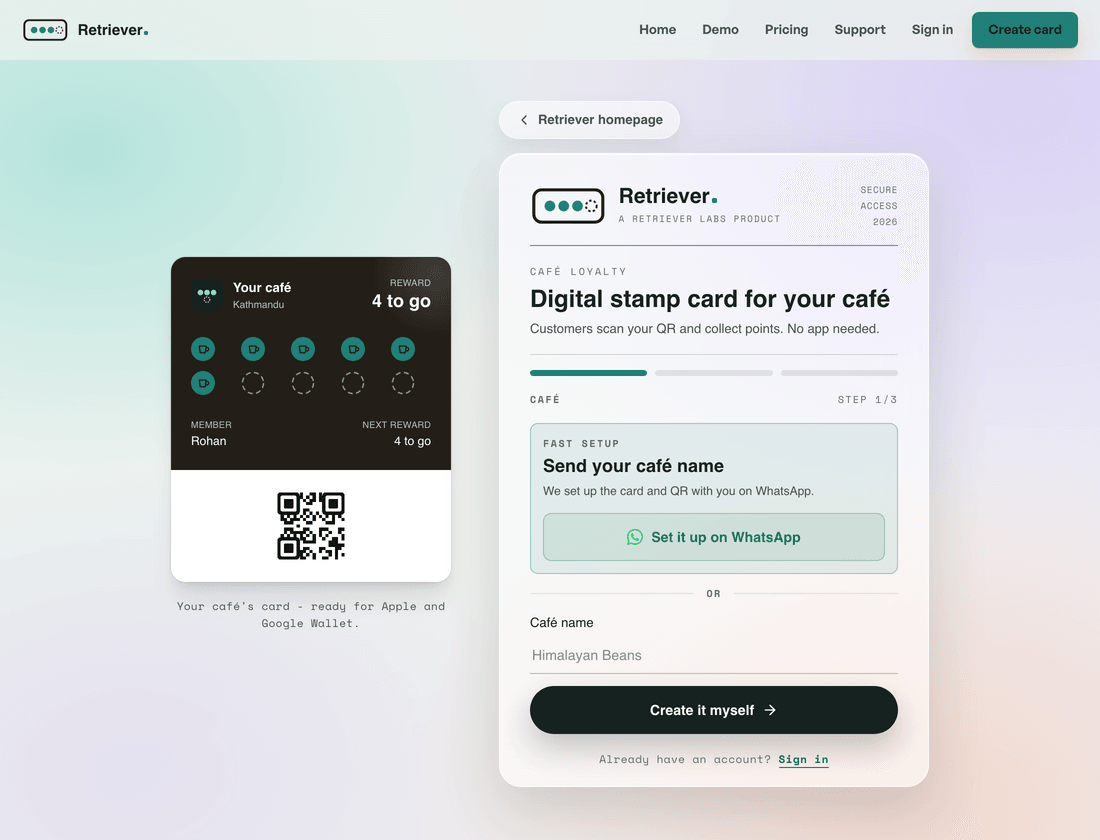
Create your café, customise your card, and award your first stamp - start to finish.
Retriever gives your café a digital loyalty card that lives in Apple Wallet and Google Wallet - no app for you or your customers to install. Here's the whole setup, start to finish.
Step 1 - create your café at /signup
Create your café. Sign up at retrieverlabs.net/signup, and open your dashboard. If email confirmation is required for your account, Retriever will show a check-your-email message.
Make it yours. In Card design, set your reward rules, stamp icon, colours and logo. Apple Wallet updates visually; Google Wallet needs a saved PNG or JPEG logo before customers can add the pass.
Print your join poster. Open Branches → Branch posters. The join link is shared across the brand, while each poster can show that branch's name and address.
Award stamps. Open the scannerand point it at a customer's wallet QR. Branch scanners share the same customers and balance, but record which location handled the scan.
Redeem rewards. When a customer hits your threshold, the scanner shows a Redeem button.
Add your team. Invite staff from Team or from a branch. You can assign managers to branch dashboards and scanners.
Retriever is free while we get started in Nepal: every feature is included. Just sign up and open your dashboard.